Disclaimer
· We spared no efforts to make sure that the information in this manual is correct and complete. However no liability is accepted for any errors or omissions. Gembird Electronics reserves the right to change the specifications of the hardware and software described in this manual without prior notice.
· No part of this manual may be reproduced, transmitted or translated in any language in any form, by any means, without the prior written permission of Gembird Electronics Ltd.
· Gembird Electronics makes no warranties for damages resulting from corrupted or lost data due to a mistaken operation or malfunction of the product, the software, personal computers or peripheral devices.
Gembird® is a registered trademark of Gembird Europe bv.
Other names or products not mentioned above may be registered trademarks or trademarks of their respective owners.
Copyright © 2008 Gembird Europe bv. All rights reserved
Features
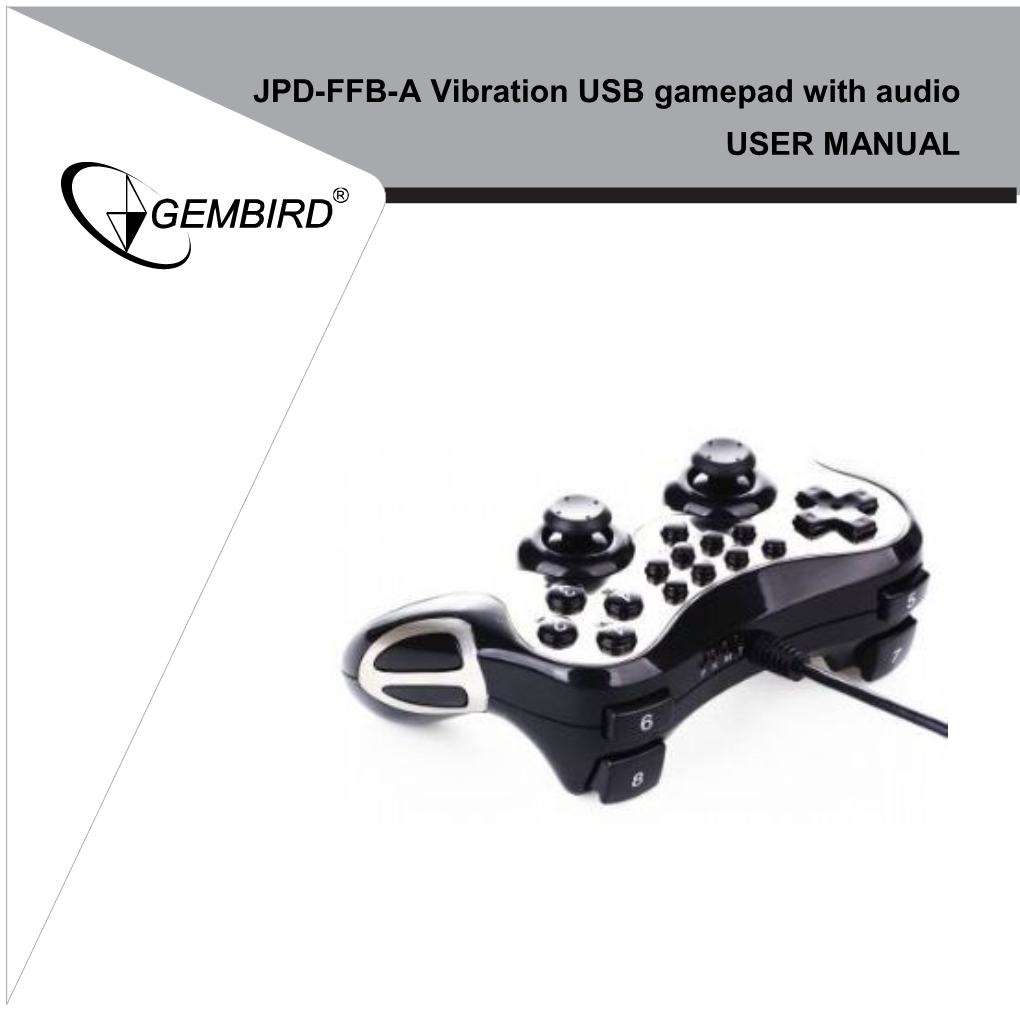
· Vibration motors inside for realistic gaming
· Emulates mouse clicks and keystrokes
· Built-in USB sound card
· Multimedia mode: volume and Media player control functions
· Comfortable grip
· Provides "Turbo" function (multiple "fire")
Specifications
· USB 1.1 and USB 2.0 compatible
· Audio codec chipset
· 2 vibration motors
· Modes: analogue, digital, multimedia, Keyboard/Mouse
· 8 direction keys, 16 buttons, "Turbo" function
· Interface cable: 1.8 m
· Dimensions: 166 x 102 x 62 mm
· Net weight: 0.24 kg
Package Contents
· Vibration game pad
· Driver and software CD
P-LED K-LED M-LED T-LED
Audio output Microphone input
Driver installation
1. Log on Windows operating system, insert CD driver and double click SETUP to install driver following system prompt
2. Start Control Panel Game Controller
3. Insert USB plug into PC Install driver as per PC instruction. Computer automatically found ”PC Twin Shock…” driver
4. The shortcut icon will automatically appear on the PC desktop as well, it’s convenient for future testing and setting.
Function Description
Mode button
Cycle Digital Mode (LED off) and Analog Mode (LED on)
K-MODE button
Press K-MODE button to cycle among Controller Mode (K-LED off), multimedia play Mode (K-LED keeps flashing) and keyboard & mouse Mode (K-LED illuminates)
TURBO
l Buttons 1 to 16 can be separately set as Turbo.
l Press and hold “Turbo” + a button, then press the button, then T-LED will begin to flash indicating the button has been set to Turbo function
l Press and hold “Turbo”+ a button, and then the Turbo function will be cleared.
Multimedia Play Mode ( K-LED keep flashing)
After installing the driver, controller’s 7 buttons have been defaulted to the multimedia play function under Multimedia Play Mode.
Vol+ (volume increase)
Vol- (volume decrease)
4II (Play / Pause)
: (Next)
< (Stop)
9 (Previous)
X (Mute)
Keyboard & Mouse Mode
Please follow below steps to find the program interface
l Start Control Panel Game Controller attribute
l Click Program tab to enter Program interface (refer to below Picture1)
Picture 1
Mouse function mapping
l Click “Left Joystick” pull-down menu to choose “Left Mouse”, the Left thumb stick will perform mouse move functionality
l Click “Right Joystick” pull-down menu to choose “Mouse Wheel”, the Right thumb stick will perform mouse wheel functionality.
l You can also mapped the function of mouse left, middle and right button to any controller buttons you desired. Click on the button tab you intend to map, click the program tab at the right bottom of above Picture1. Choose any of the mouse buttons tab you want to map, then click OK tab. (refer to below Picture2)
Picture 2
Keyboard function mapping
l Program steps are same as mouse buttons mapping procedures.
l Total 20 keys function on standard keyboard can respectively be mapped to 1 to 16 buttons and D-Pad.
l After you completed function mapping, please click “Save as” tab to save your setting.
D-pad tab
Troubleshooting
1.) The controller still cannot work after installing the software and hardware .
· Check whether the controller cable is strongly connected to PC;
· Make sure that controller’s I/O setting value has no conflict with the other peripheral setting.
· Restart PC if the controller still cannot work.
2.) The ”PC TWIN SHOCK” driving program cannot be installed or there is no response while testing the controller after installation.
· DirectX Version is too low. A version of DirectX 7.0 or up is required .
· The weak vibration
· Adjust Rumble Intensity under Effect Page
· Adjustment troubles:
o Please default the setting under adjustment page before calibration
5