Nicor Gas Nomination System
Hub Injection Nomination
Purpose:
The purpose of this document is to provide detailed instructions for a Nicor Gas Nomination System user to perform all of the steps of a Hub Injection Nomination.
Note: If a field is required to be completed, the field name is bold.
Instructions:
Creating a Hub Injection Path
Prior to Nominating, the supplier must create a Hub Injection Path for each pipeline on which they will nominate. To create the path(s):
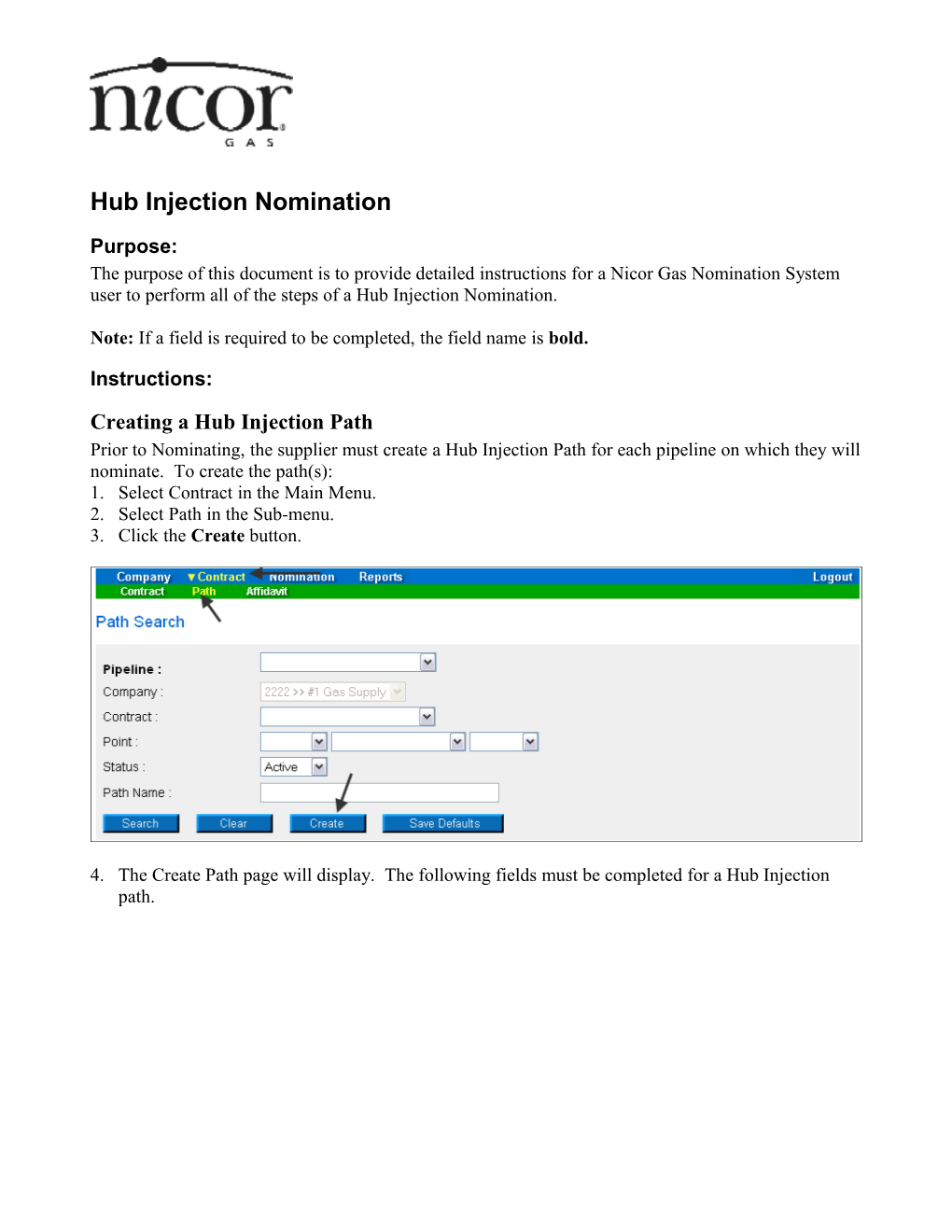
1. Select Contract in the Main Menu.
2. Select Path in the Sub-menu.
3. Click the Create button.
4. The Create Path page will display. The following fields must be completed for a Hub Injection path.
Field / Function /Pipeline / Select the pipeline associated with path.
Company / Displays your company.
Contract / Select the contract that pertains to this path. The contract has been created by the Hub Administrator. The naming convention for the contract is: Your 4 digit Broker Number + Hub Injection @Pipeline >H + Your 4 digit Broker Number + I + Pipeline Code. Ex: 2222 Hub Injection @ANR > H2222I5
Receipt Point / Select your receipt pool. The pool has been created by the Nicor SuperAdmin. The naming convention for your receipt point is: Your 4 digit Broker Number + Pool + Pipeline Code. Ex: 2222Pool5
UpK / An upstream contract shows gas is coming from outside Nicor territory. Upstream contract is not used for Injection into Hub.
Delivery Point / Select the external delivery point – HUBPT.
DnK / Select the appropriate downstream contract. The downstream contract pertains to the Hub and has been created by the Hub Administrator. The naming convention for the downstream contract is: F for Ferc or R for Rate 21 + 4 digit Number Generated by Hub > Hub Contract Code – 2 digit year + 2 digit month + 2 digit day of contract – 3 digit number generated by Hub.
Ex: F8900 > F0818-080707-231
Fuel Category / This field is not currently being used.
Path Name / The Path Name will be automatically generated by the information entered above. The naming convention for the path name is: Your 4 digit Broker Number + Pool + Pipeline Code -> F for Ferc or R for Rate 21 + 4 digit Number Generated by Hub @HUBPT. Ex: 2222Pool5->F8900@HUBPT
Package ID / This field is not currently being used.
Start Date / Enter the start date of this path.
End Date / End the date that this path will be effective. Note: This field is not required. Leave the field blank to keep this path effective for an extended period of time.
Status / Select the default value of Active.
5. When complete, click the Save button. The message “Path record saved successfully” will display.
Creating a Hub Injection Nomination in the Timely or Evening Cycles
After the Hub Injection Path has been created, you can nominate. To nominate:
1. Navigate to the Search Nomination page by selecting Nomination in the Main Menu.
2. The Nomination Search page will display.
Field / Function /Pipeline / Select the pipeline to search.
Gas Day / Select the calendars to select the Gas Day range that you want to view. The default dates are tomorrow’s date through the end of the current month.
Company / Displays your company name.
Contract Type / To search nominations for the Hub Injection contract type, select:
Hub Injection @Pipeline.
Contract / To search nominations by contract, select the contract name. The naming convention for the contract is: Your 4 digit Broker Number + Hub Injection @Pipeline >H + Your 4 digit Broker Number + I + Pipeline Code. Ex: 2222 Hub Injection @ANR > H2222I5
View a Nomination Session / To view the nominations for a specific nomination session, select the radio button next to View a Nomination Session. Select the session from the dropdown.
Show all Current Nominations / Select the radio button to show all current nominations. The default is to show all current nominations.
Display Totals / No Total – To avoid displaying totals for the date range, select the radio button.
For a Gas Day – To only show totals for a specific gas day, select the radio button. Enter a date in the box to the right.
For the Date Range – To show the totals for the entire gas range displayed in the Gas Day boxes, select the radio button. The default is to show totals for the entire date range.
Primary Display / The primary display determines which column of information is shown first. Select to show the nominations that have been Nominated, Scheduled or Allocated in the first column. The default is Nominated.
Display Options / Check the boxes to determine what is displayed.
The choices are:
Show Nominated – Displays nominations.
Show Scheduled – Displays scheduled allocations.
Show Allocated – Displays what has been allocated.
Include Paths with Zero Quantities – Displays paths with no nomination.
Show Ranks – This option is not currently being utilized.
3. To search, click the Search button. The Nomination Result page will display.
Note: The screen shot below is based on the default choices on the search page.
4. The Contract Codes and Names of the Paths for the Nominations display at the bottom of the page.
5. Click on the + sign next to the Pipeline to Pool Contract Code and Name to drill down to the path. The naming convention for the contract is: H + Your 4 digit Broker Number + I + Pipeline Code (Your 4 digit Broker Number + Hub Injection @Pipeline) Ex: H2222I5 (2222 Hub Injection @ANR)
6. You can nominate for 1 calendar month at a time. Select the calendars to select the date range for the nomination. Note: Rolling nominations will not be allowed on Rate 21 Hub imbalance contracts for Injections or Withdrawals. You will have to nominate these transactions on a daily basis.
7. Enter the Gross amount of the nomination. The Net amount will automatically populate when the nomination is added.
8. Click the icon to add the nominations
9. If you make a mistake, enter a new nomination for the correct amounts.
Note: The last nomination amount entered for a date will be utilized.
Ex. You nominate to inject 3,000 MMBtu into the Hub on 7/16/08. You want to increase the nomination by 1,000 MMBtu later in the Timely Cycle or in the Evening Cycle. You will nominate the full 4,000 MMBtu.
10. When complete, click the Save button.
11. If you attempt to make a rolling nomination on a Rate 21 Hub Imbalance Contract, the following error message will display. You will need to update your nomination and resubmit.
12. If a nomination is outside of the contract start and end date, the following error message will display. You will need to “cut” the nomination by clicking on the scissors and resubmit.
13. If you exceed the MDQ on the Hub Injection Contract or Path, the following error message will display. You will need to correct the nomination and resubmit.
14. If no errors exist, a window will display with the message “Your nominations have passed validation. All nominations have been saved.”
15. Click Close Window to close the window.
Update Nomination and Evening Cycle Nomination
1. To update your nominations, navigate to the Nomination Result page and drill down to the Path Name and Date Range.
2. Once a nomination is saved, it can not be deleted. To cancel an entered nomination, enter 0 in the gross amount.
3. To update a nomination, enter 0 to “zero out” the initial nomination; this will help avoid false MDCQ error messages.
4. Enter the updated nomination amount. The last nomination entered for a date will show in the system.
Note: For this scenario, we currently have a Hub injection nomination of 7000 MMBtu for each day from 7/16/2008 – 7/31/2008. We want to reduce the nomination by 1000 MMBtu on 7/18/08 later in the Timely Cycle or in the Evening Cycle.
5. Select the calendars and change the start and end date to 7/18/08. Enter 0 for the Gross Amount. Click the Save button.
6. Enter 6000 for Gross amount.
7. Click the icon to add the nominations.
8. Click the Save button.
9. The Nomination Save Result window will open. Click Close Window to close the window.
10. The nomination amount for 7/18/2008 changes to 6000. Note: The nomination amount for 7/16/2008 to 7/17/2008 and 7/19/2008 – 7/31/2008 does not change.
Page 2 of 10
Hub Injection v.2 – Effective Date 6/10/09